Open Team
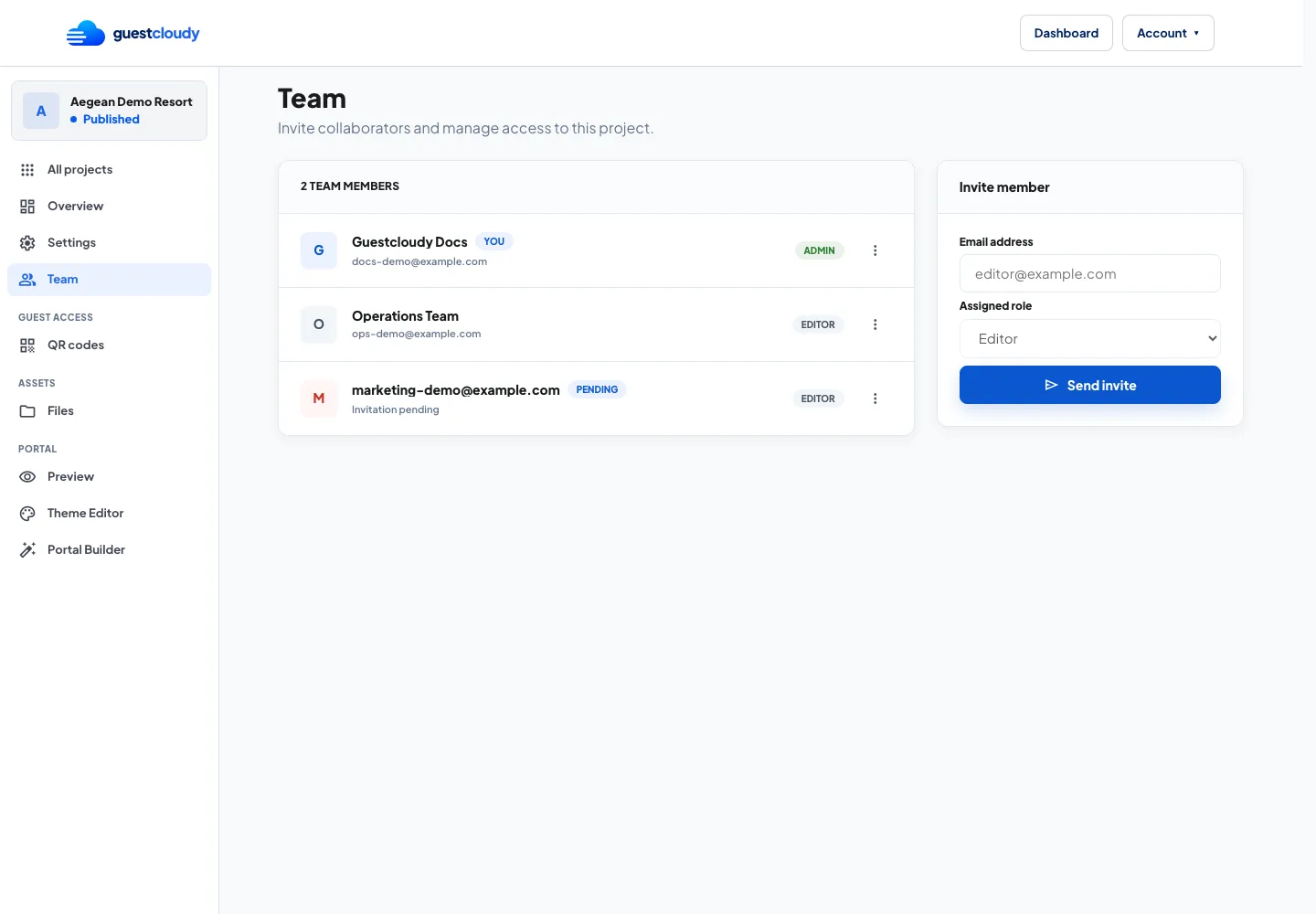
Open your project and choose Team from the dashboard navigation. This page shows current members, pending invitations, and the invite form for adding collaborators.
Use this page when another department needs to help maintain content, prepare QR codes, or review guest-facing updates.
Invite a collaborator
Enter the collaborator's email address in Invite member and send the invitation. Guestcloudy creates an invitation link for that project only.
Invite people by work email whenever possible. This helps your team recognize who has access and makes it easier to review pending invitations.
Understand roles and access
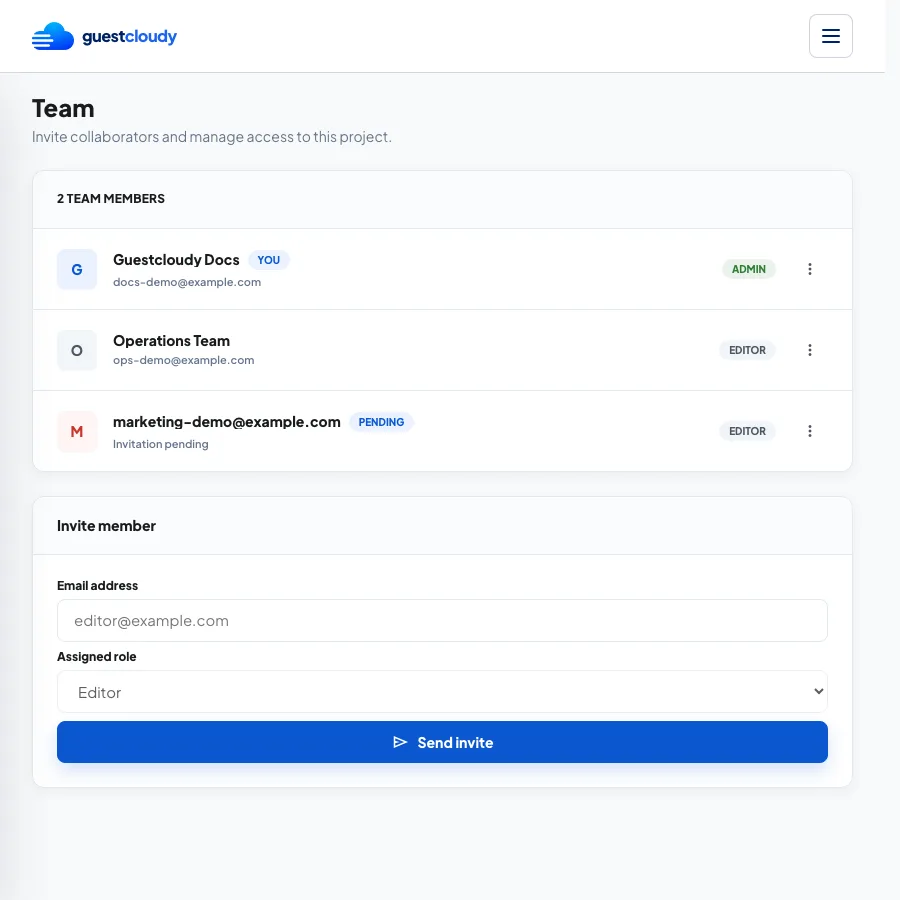
The first version of team invitations adds collaborators as Editors. Editors can help with day-to-day project work, while project admins keep control of sensitive management actions.
Use team access for people who should work inside the project, not for guests. Guests only need the public portal or QR code link.
Share, resend, or cancel pending invitations
Pending invitations stay visible until they are accepted, cancelled, or expired. If email delivery is not available in your local setup, copy the invitation link from the pending invitation row and share it manually.
Use Resend when the collaborator missed the email, and Cancel if the invitation should no longer grant access.
Manage active members
After someone accepts the invitation, they move from pending invitations into the member list. Review this list regularly so project access stays aligned with your hotel's operations.
If an editor no longer needs access, remove them from the Team page. Keep at least one trusted admin responsible for project settings, billing, and access decisions.
More guides